
Helios / User guide / Browser previews and screenshots
Browser previews and screenshots
Preview local websites in Helios, inspect pages, capture screenshots and connect project run configurations to the browser pane.
Helios 0.114.4 · Source reference ↗
Open a project preview
The Browser pane keeps a web page beside the conversation. Use it to inspect a local development server, read a page or view supported images, HTML and PDFs opened from the transcript.
- Start the project server in Terminal, or choose its configuration from the Run menu.
- Open the server’s displayed URL in the Browser pane.
- Check the page and keep its server running while you work.
A configured run target with a port can open the preview automatically when that port answers. The guide to run configurations shows a small example.
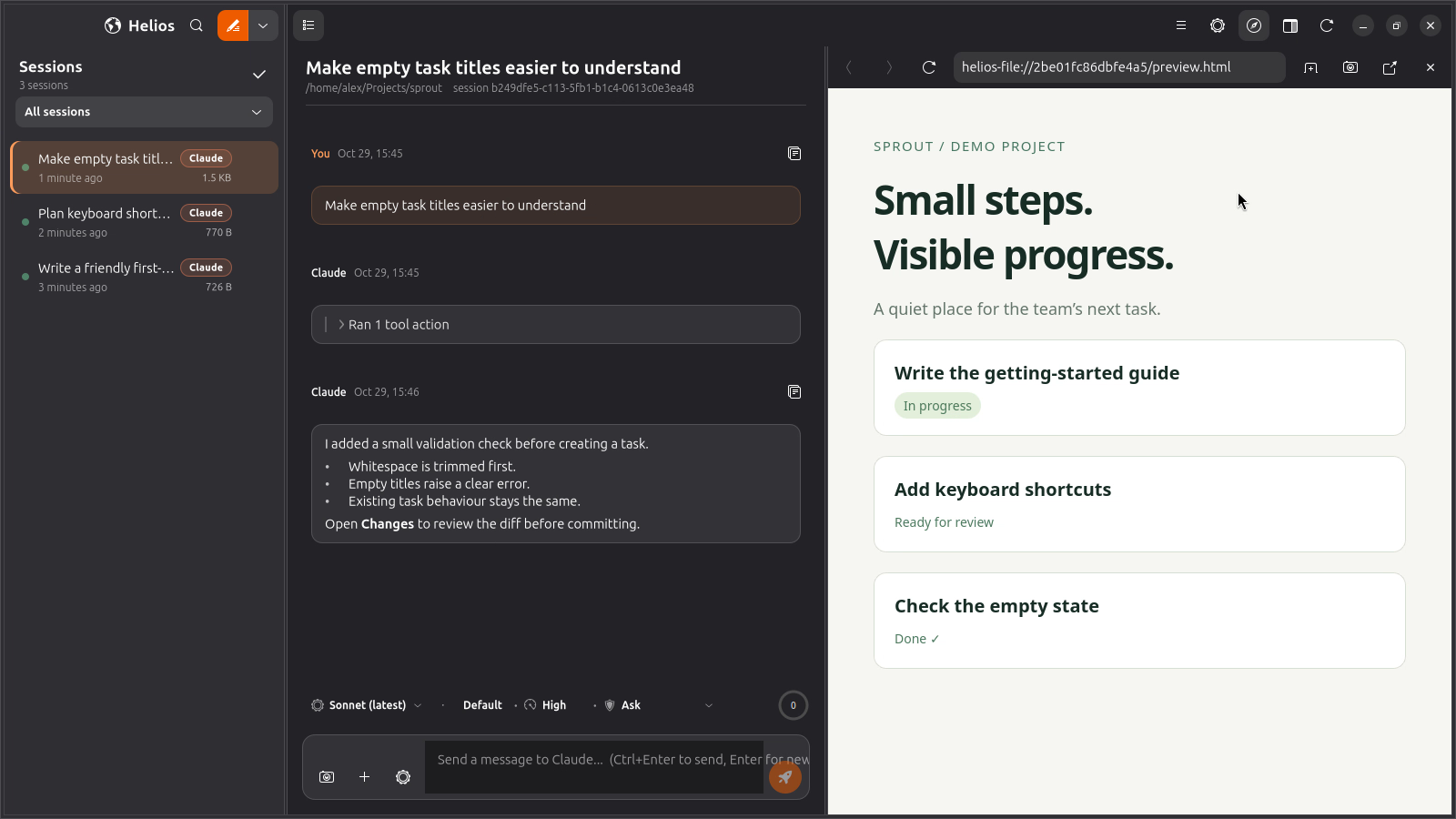
Let a supported agent inspect the page
Supported provider paths can receive Helios browser tools for opening and reading pages, screenshots, clicking by selector or visible text, entering text and reading console errors. Access follows the browser’s per-site consent flow.
Claude, Codex, Muse, Kimi and OpenRouter can use this integration when supported and configured. Gemini’s Antigravity path uses its own browser integration.
Confirm the intended site and scope when consent is requested. Keep sensitive personal accounts out of a demonstration project. A tool’s availability in the inventory does not establish that a page has loaded successfully.
Attach a screenshot
Use the Browser toolbar’s camera button to capture the current page and add it to the composer. Review the thumbnail and send it with a concrete observation:
The form's error message overlaps the submit button at this size.
Use the attached preview to fix the spacing, then show the result.
This differs from the composer’s screenshot control, which asks the desktop portal to capture a window or area. Native image delivery also depends on the selected provider’s image support.
Debug a preview
- Blank page: verify the server is still running and that you opened the correct URL and port.
- Connection refused: read the terminal’s startup output; the process may have failed or selected another port.
- A selector does not match: inspect the current page before trying another selector. A tool failure is useful feedback about the page state.
- Errors after an interaction: inspect console and uncaught-error output along with the visible result.
For source installations, WebKitGTK and the image/screenshot dependencies must be present. The source installation guide lists the required system packages.