
Helios / User guide / Your first project and chat
Your first project and chat
Choose a project folder, connect a coding provider, send your first Helios task and review the result.
Helios 0.114.4 · Source reference ↗
Before you start
Install the current Helios package or follow the source instructions. Connect one of the six supported providers, and confirm its account in Settings → Accounts. A model appearing in a list does not establish that your account can use it.
Use a small project with a known way to run and test it. Commit or back up existing work before asking an agent to edit it.
Choose the project folder
- Press Ctrl+Shift+N to start a chat and choose its working directory.
- Select the repository folder itself, such as
~/Projects/sprout. - Check the folder shown for the conversation before sending a task.
Set Settings → Defaults → Default working directory if most chats belong to one project. That folder choice saves immediately. On a fresh installation, a chat can otherwise start in your home folder; Helios forces a conversation whose folder is exactly $HOME to read-only.
Send a small first message
Choose a provider and model in the conversation toolbar. Open Execution to inspect the workflow, reasoning and permissions the provider supports. Begin with a task whose result is easy to check:
Read this project and explain how to run its tests.
Do not change files yet. Point out the files I should read first.
Send with Ctrl+Enter. Plain Enter inserts a newline. The transcript shows responses and tool activity; expand a tool card to inspect what ran. Answer any question or approval in its dialog.
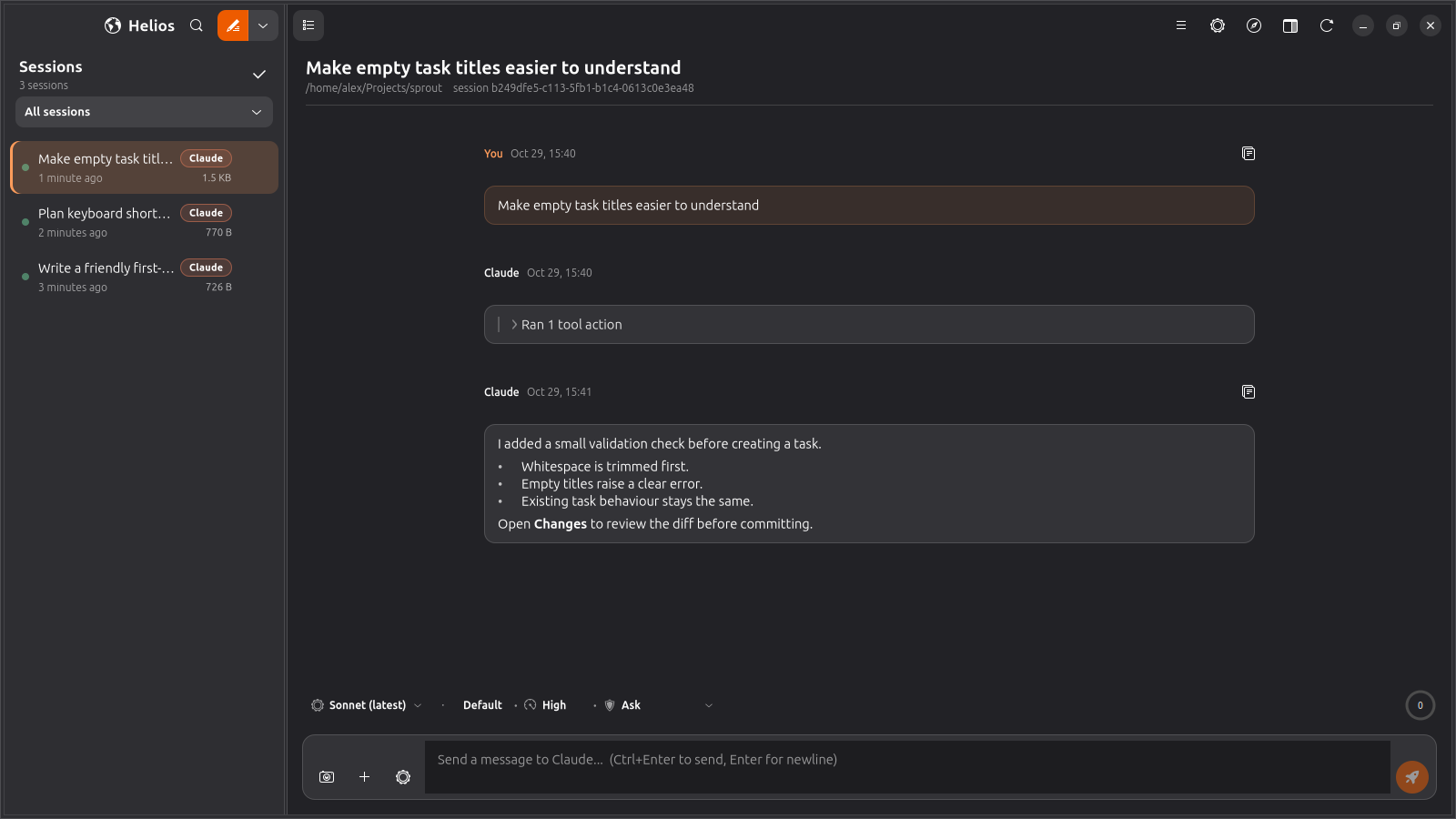
Make and verify one change
- Ask for a specific improvement, its expected result and a test. For example: “Make empty task titles show a useful validation message. Add a focused test.”
- Use a permission mode appropriate to the project. Read the provider-specific meaning before changing it.
- Open the workspace selector and choose Changes. Read the diff and confirm that only expected files changed.
- Use Terminal to run the test command yourself. Review output, then stage and commit the result through your normal Git workflow.
The Changes pane describes the current repository, including edits made by other sessions or your editor. An agent saying a test passed is useful evidence; reading the result and testing the intended behaviour completes the review.
Continue or stop
You can write a follow-up while a turn is running; it queues until that turn ends. Esc or Ctrl+. stops the current turn and returns queued text to the composer. Switch sessions from the sidebar to return to another task.
Next, learn session search and worktrees, review and checkpoints, or local browser previews.