
Every screen and setting in Indigo, with pictures from the real interface.
New to Indigo? Read Install, then Controls.
Watch it in motion: the video tour.

Start here
- Install: put Indigo on your SD card, boot it, update it, and get back to stock Swiss when you want it.
- Controls: what each button does on every screen.
Using Indigo
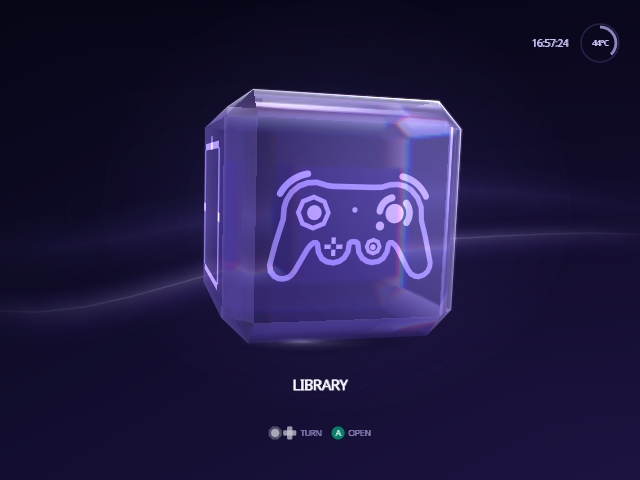 Home: the cube and its four faces. |
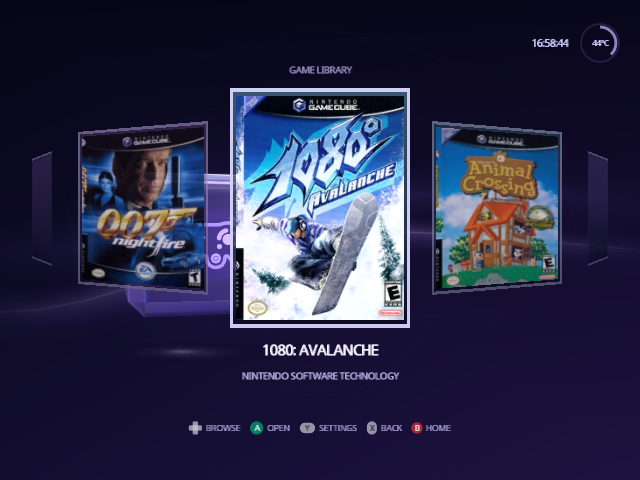 Library: your games as posters, in a row, a column or a grid. |
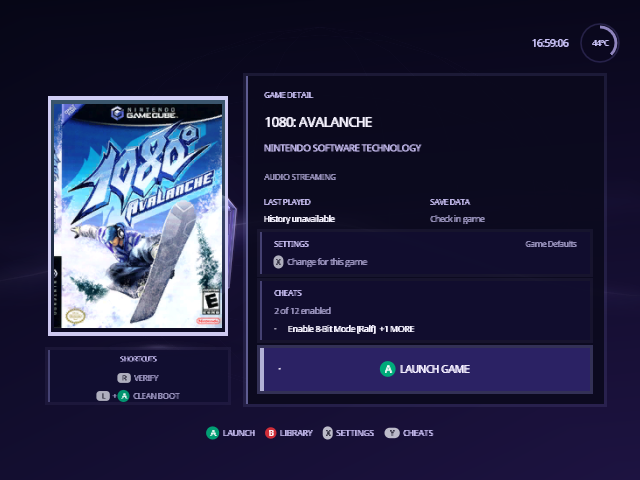 Game details: launch, settings and shortcuts for one game. |
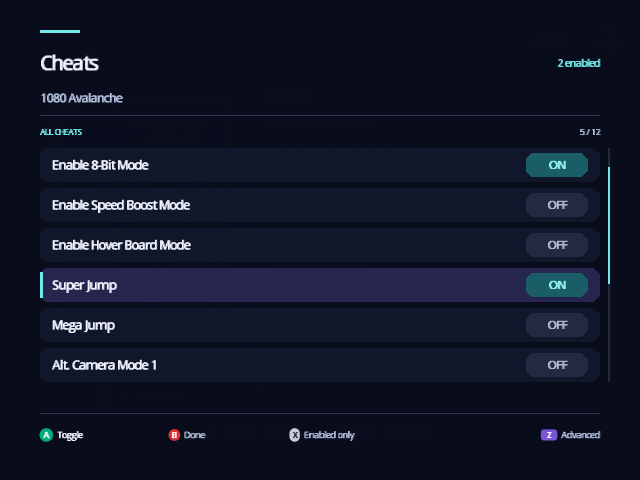 Cheats: switch Gecko codes on and off. |
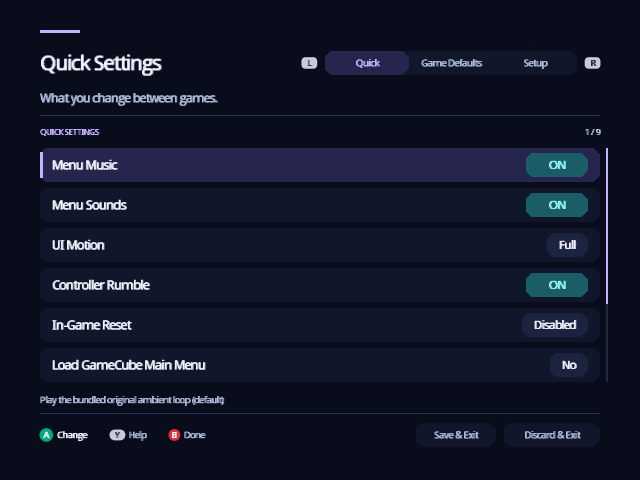 Settings: Quick, Game Defaults, Setup and each game's own settings. |
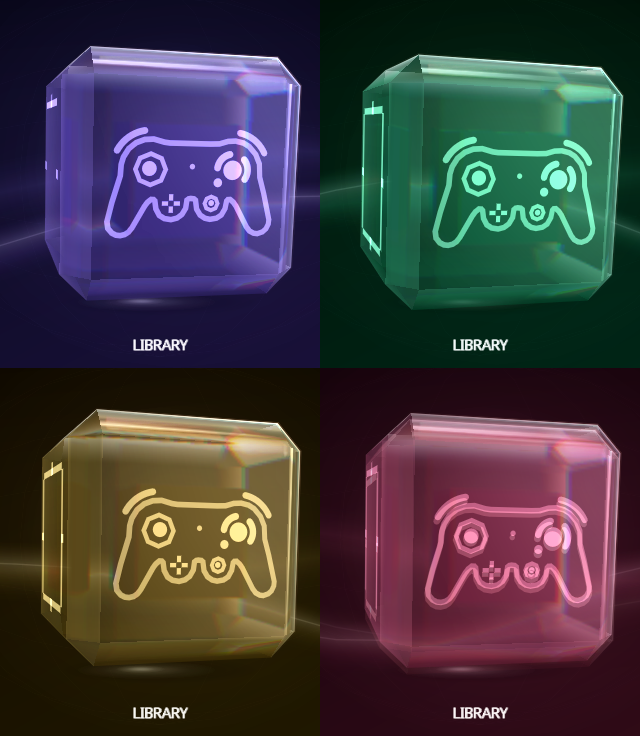 Make it yours: Menu Color, cube icons, motion and sound. |
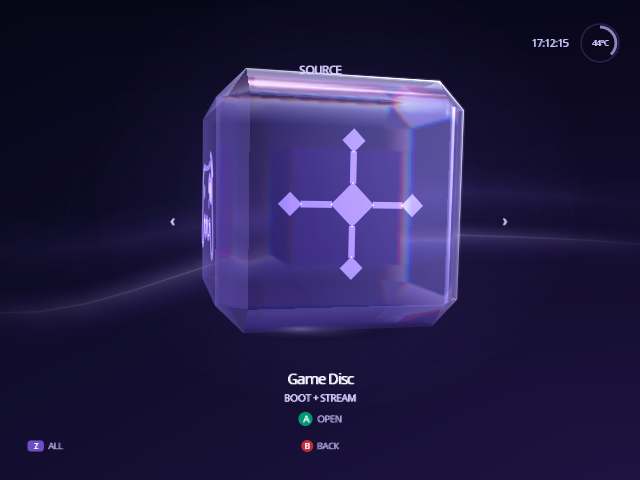 Source: choose the device your games come from. |
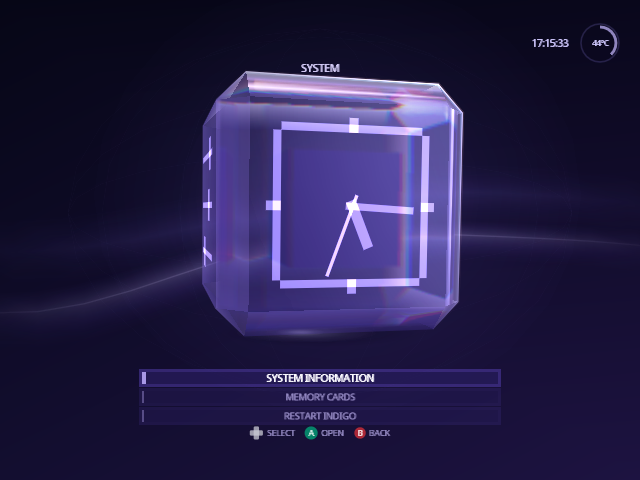 System: console information and restarting Indigo. |
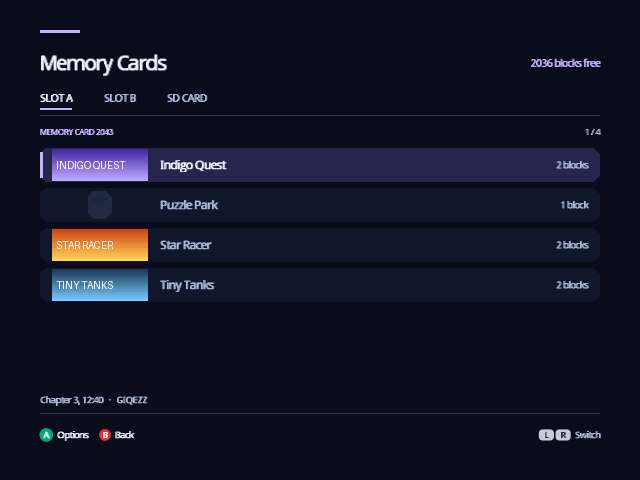 Memory Cards: see, copy, move and delete your saves. |
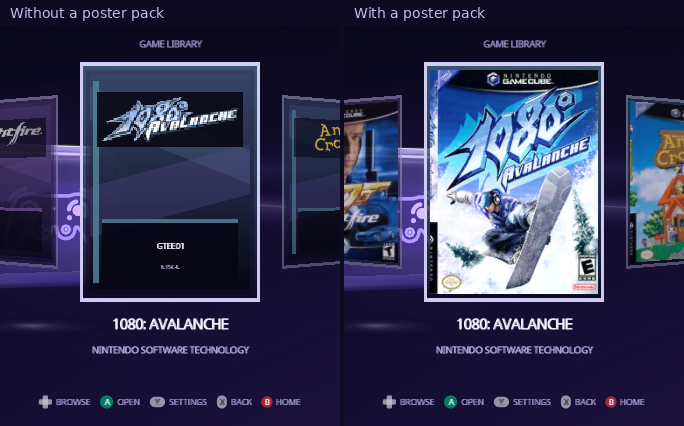 Posters: box art from a ready-made pack, or your own. |
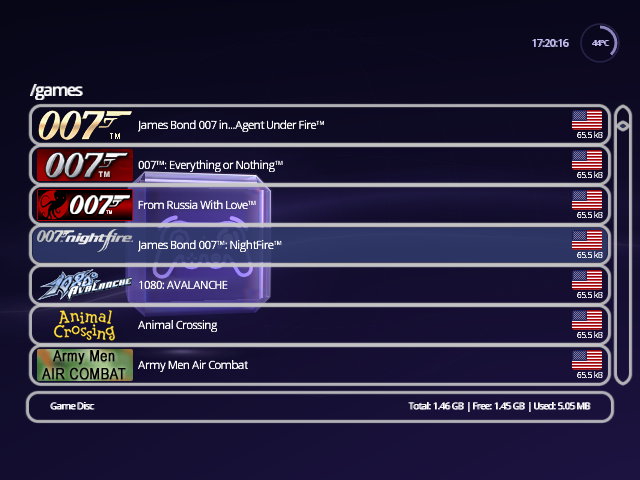 Troubleshooting: fixes for the common surprises. |
Reference
-
Settings files: every key in
global.iniand in a game's own file, for setting up a card on a computer. - Changelog: what each release changed.
- Swiss documentation: device handlers, patches and boot options. Indigo leaves all of them as Swiss has them.
About the pictures
Every picture here was recorded from Indigo running in the Dolphin emulator, with the games, poster pack and cheat files on an emulated disc. The box art belongs to its publishers. The recordings run without an SD card, so Setup › Storage says there is no device to save settings to, and game details have no Autoload shortcut. With an SD card in your console, both look as the text describes. The Memory Cards pictures of the SD CARD tab, the Save Folder and the folder chooser use a stand-in for the SD card that exists only for recording, named GC Loader on screen, since Dolphin can't give a GameCube one.
From docs/guide/README.md in Indigo v1.25.0, rendered for the web. Spotted a mistake? Suggest an edit.