
Indigo uses the same buttons for the same jobs everywhere, and the bottom of every screen shows the buttons that work there, drawn as the controller's own buttons.
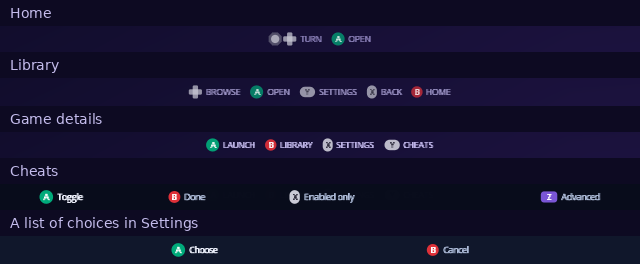
The short version
| Button | Does |
|---|---|
| Control stick or D-pad | Move. On Home, turn the cube. Hold to keep moving through a list. |
| A | Open or choose. |
| B | Go back. In Settings, leave and keep your changes. |
| X, Y, Z | The extra actions each screen names in its hints. Y explains a setting. |
| L, R | Switch tabs or pages. |
| START | Shows your recent games on Home, when Recent List is on. |
Screen by screen
Home
| Button | Does |
|---|---|
| Left, Right | Turn the cube to the next face. |
| Up, Down | Tip the cube over to the next face. |
| A | Open the face you're on. |
| START | Recently played games (Setup › Library › Recent List). |
The Source and System faces open a short list: move with the D-pad, A opens, B goes back. See Home.
Source picker
| Button | Does |
|---|---|
| Left, Right | Show the next device. |
| A | Open the device, or try again if it wasn't detected. |
| Z | Show every device, or only the ones detected. |
| X | Change an SD adapter's speed. |
| Y | Details about the device. |
| B | Back. |
See Source.
Library
| Button | Does |
|---|---|
| D-pad or stick | Move through your games: see the layouts below. |
| A | Open the game's details. |
| Y | The game's own settings. Leaving them shows its details. |
| X | Up one folder. |
| B | Back to Home. |
How the D-pad moves depends on Library Layout (Setup › Library):
| To move | Horizontal | Vertical | Grid |
|---|---|---|---|
| To the next or previous game | Left, Right | Up, Down | Left, Right |
| To the game above or below | Up, Down | ||
| A page at a time | Up, Down, L, R | Left, Right, L, R | L, R |
See Library.
Game details
| Button | Does |
|---|---|
| A | Launch the game. |
| L + A | Clean boot: start the disc with no changes applied (disc drive only). |
| B | Back to the Library. |
| X | This game's own settings. |
| Y | Cheats. |
| Z | Autoload: open this game every time Indigo starts. Press again to turn it off. |
| R | Check the disc image's data, for discs Indigo can verify. |
Z appears when Indigo has a device to save settings to. See Game details.
Cheats
| Button | Does |
|---|---|
| A | Switch the highlighted cheat on or off. |
| X | Show only the cheats that are on, or all of them. |
| Z | Advanced: cheat memory and the WiiRD debugger. |
| B | Done. |
See Cheats.
Settings
| Button | Does |
|---|---|
| Up, Down | Move between settings. Hold to scroll. |
| Left, Right | Step the highlighted setting to its previous or next value. |
| A | Change the value. On a setting with four or more choices, list them all. |
| Y | Explain the highlighted setting. Y or B closes it. |
| L, R | Switch between Quick, Game Defaults and Setup. |
| X | In a game's own settings: put the setting back to Game Defaults. |
| B | Leave Settings, keeping your changes. In a Setup section, go back to the list of sections. |
In a list of choices, move to one and press A, or B to keep what you had. See Settings.
System information
| Button | Does |
|---|---|
| L, R | Previous or next page. |
| B | Back. |
See System.
Memory Cards
| Button | Does |
|---|---|
| Up, Down | Move through the saves. Hold to scroll. |
| Left, Right | A page at a time. |
| L, R | Slot A, Slot B or the SD card. |
| A | On a save: Copy, Move or Delete. On a folder: open it. |
| X | When choosing a folder: choose the one that's open. |
| B | Back. |
See Memory Cards.
During a game
With In-Game Reset on (Settings › Quick):
| Buttons | Does |
|---|---|
| A + Z + START | Leave the game. |
| R + Z + START | Restart the game. |
From docs/guide/controls.md in Indigo v1.25.0, rendered for the web. Spotted a mistake? Suggest an edit.