
A on a game in the Library opens its details: everything about that one game, and every way to start it, on one screen.
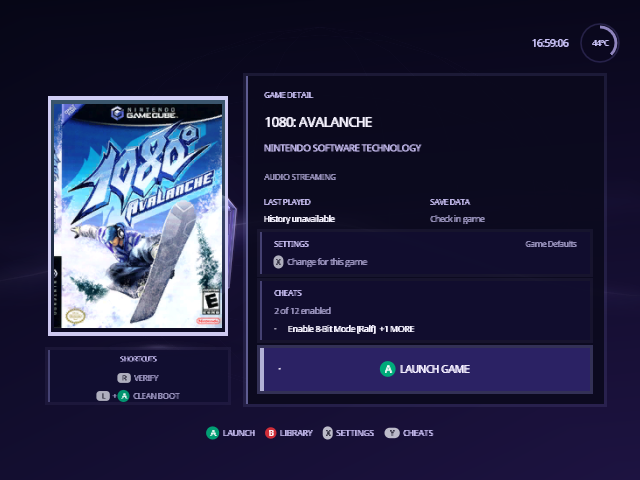
What's on the screen
- The cover: the game's poster, or its disc banner if you have no poster pack.
- Title and publisher, from the disc's banner. Under them, notes when they apply: Audio Streaming for a game that plays music streamed from the disc, Disc 2 Ready when Indigo has found the game's second disc, and Autoload (below).
- Last played: the date you last started the game from Indigo, or "No play recorded". Indigo records it when your settings live on the card the game starts from, as with a single SD card. With no settings device to read it from, it says "History unavailable".
- Save data: "Check in game". Indigo doesn't read your memory cards, so the game itself is where to look.
- Settings: "Game Defaults" while the game follows them, or how many of its settings are its own and the first of them, such as "1 custom" and "Force Video Mode: 480p". See below.
- Cheats: how many of the game's cheats are on and the names of the first ones, or "Y Choose cheats" when none are. It reads "No cheats found" when there's no cheat file for the game. See Cheats.
- Launch Game, the button A presses.
- Shortcuts: the extra ways to start or check the game (below).
Start the game
Press A. Indigo applies the game's settings and your cheats, then starts it.
L + A is a clean boot, shown when the game is in the disc drive (or a drive replacement that sits in its place). The console resets and starts the game the normal way, with nothing changed: no patches, cheats or forced video modes. Region restrictions apply. If a game should always start this way, turn on Prefer Clean Boot in its own settings; A then reads Clean Boot.
To start games straight from the Library without this screen, turn on Boot without prompts in Settings › Quick. Hold B while you choose a game to see its details anyway; that turns Boot without prompts off until you restart.
This game's own settings
X opens settings that apply to this game only: its video mode, widescreen, language, polling rate and the rest. In the Library, Y on the game's cover opens them straight away, and leaving them shows these details. Anything you change is marked Custom, and the detail screen's Settings line counts them and names the first, for example "1 custom" and "Force Video Mode: 480p". With none, it reads "Game Defaults". In the Library, a game with any Custom setting shows a small sliders mark in the corner of its cover.
In a game's own settings, X puts the highlighted setting back to the Game Defaults value, and B leaves. The rest works like the main Settings.
Autoload
Z marks the game to open every time Indigo starts, so its details are the first thing you see. With Boot without prompts on, the game starts straight away instead. The shortcut then reads Z Autoload On; press Z again to turn it off.
Autoload is saved in your settings file, so it appears only when Indigo has a device to save to.
Verify
R reads the whole disc image, compares it with the known good copy of that disc and tells you whether it passed. It appears for discs Indigo can check. Use it when a game crashes or won't start, to rule out a damaged file.
From docs/guide/game-details.md in Indigo v1.25.0, rendered for the web. Spotted a mistake? Suggest an edit.