
Indigo is a single program, ipl.dol, that runs in place of Swiss. It reads
the same settings, cheats and saves as Swiss, so nothing on your card has to
move.
You need a GameCube that already starts Swiss from an SD card or a drive replacement (PicoBoot, GC Loader, SD2SP2, SD Gecko and the like), and a computer to copy files to the card.
1. Download
Each release has
an Indigo-vX.Y.Z.zip. It is laid out exactly as it goes on the card, so
installing is drag and drop:
Indigo-README.txt              what goes where, in plain words
ipl.dol                        Indigo
games/                         your games (see Library)
swiss/patches/apploader.img    Indigo again, for In-Game Reset
swiss/ui/                      posters.pak, if you add one (see Posters)
swiss/indigo/                  the licence and notice
2. Put it on the card
Pick the line that matches how your console starts Swiss.
PicoBoot, and other modchips that boot ipl.dol from the card.
If the root of the card already has an ipl.dol, that is your current Swiss:
rename it to z.dol. Then unzip the download, select everything inside and
drag it onto the root of the card. PicoBoot starts z.dol when you hold Z at power-on, so stock Swiss
stays one button away.
PicoBoot with no ipl.dol on the card. Swiss is flashed onto the Pico
itself. Flash PicoBoot's standard firmware first (see its
installation guide),
then follow the step above.
A loader that boots a .dol from the card by name. Replace that file
with ipl.dol, keeping the old file's name.
GC Loader, or a loader that boots a disc image. Drag everything in the
download onto the root of the card, start Swiss the way you do now, and open
ipl.dol from Swiss's file list. Indigo doesn't build a boot.iso.
3. First boot
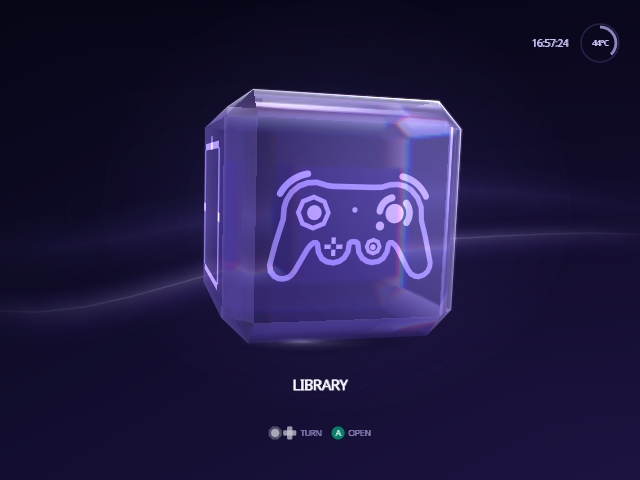
Indigo opens on Home, a glass cube with one destination on each face. If it finds your games, the cube faces Library; press A to see them. If it finds no device to read from yet, it faces Source, where you choose one.
Next:
-
Set up your library: the Library
needs a
/gamesfolder with nothing but games in it. - Add posters for box art, and cheats if you want them.
- Learn the controls.
Update Indigo
Download the new release and replace ipl.dol (or the file you replaced in
step 2) and swiss/patches/apploader.img with the new ones. Your settings,
poster pack and cheats stay where they are.
Go back to stock Swiss
-
PicoBoot: hold Z while you switch the console on to start
z.dol. - Other loaders: put your old file back, or start stock Swiss from your loader as before.
- In-Game Reset set to Apploader returns to Indigo until you put back stock
Swiss's own
swiss/patches/apploader.img.
Both use the same settings file. Indigo keeps your comments in it when it saves; stock Swiss rewrites the whole file when it saves.
Leaving a game
With In-Game Reset turned on (Settings › Quick), hold A + Z + START
during a game to leave it, or R + Z + START to restart it. Set it to
Apploader to come back to Indigo: the zip's swiss/patches/apploader.img
is Indigo. Reboot resets the console, which starts whatever your loader
boots (with GC Loader, its boot.iso).
Build it yourself
The build runs in the container image the project's CI uses, so nothing is installed on your computer:
git clone https://github.com/spencercnorton/indigo.git
cd indigo
docker run --rm -u "$(id -u):$(id -g)" -v "$PWD:/work" -w /work \
  ghcr.io/extremscorner/libogc2 make dev
This writes cube/swiss/swiss.dol. That is the same program as ipl.dol
in the release zip; copy it to the card under the name your loader expects.
buildtools/sd_package.sh vX.Y.Z packs it into the zip, with the
apploader.img In-Game Reset returns to.
From docs/guide/install.md in Indigo v1.25.0, rendered for the web. Spotted a mistake? Suggest an edit.