

The Library shows the games on your card as posters: in a row, in a column or in a grid, as you choose. On Home, turn the cube to Library and press A.
Choose a layout
Library Layout, the first row of Settings › Setup › Library, sets how the Library lays out your games. Left and Right on it step through the three, and the line above the buttons says how each one moves.

- Horizontal, the default: a row of covers. The game in the middle is raised, with its title and publisher underneath, as the disc's own banner gives them.

- Vertical: a column of covers down the left of the screen, turning like a wheel. The selected cover is large, with its title, publisher and game ID beside it.

- Grid: rows of five covers, three rows on screen. The selected cover is lit and a little larger, and its title and publisher are shown above the controls.
Every layout wraps round: after the last game comes the first.
Moving around
| To move | Horizontal | Vertical | Grid |
|---|---|---|---|
| To the next or previous game | Left, Right | Up, Down | Left, Right |
| To the game above or below | Up, Down | ||
| A page at a time | Up, Down, L, R | Left, Right, L, R | L, R |
The control stick moves along the layout too, and in the grid in every direction. A page is nine games, or three rows of the grid; it stops at the first or last game (or row) before it wraps round.
In the grid, Left and Right run on from the end of one row to the start of the next. Up and Down keep to the column. The last row can be short: from a column it doesn't have, Up or Down lands on its last game.
- A opens the game's details, where you launch it.
- Y opens the game's own settings, as X does on its details. When you leave them you are on the game's details, and B takes you back to the Library. Y never starts the game, even with Boot without prompts on.
- B goes back to Home.
- A small sliders mark in the corner of a cover means that game has settings of its own.

The Library remembers where you were. Come back from a game's details, or from Home, and the same game is still selected.
Set up the games folder
The Library shows the games in one folder, /games at the root of the card
(or of whichever device you chose on Source). Put each game in
its own folder, or put the disc images there directly:
/games/Super Mario Sunshine [GMSE01]/game.iso
/games/Super Mario Sunshine.iso
Disc images end in .iso, .gcm, .tgc or .fdi, in capitals or not.
Keep nothing else in /games: any other file (a text file, a cover image)
or an empty folder turns the Library back into Swiss's plain file list.
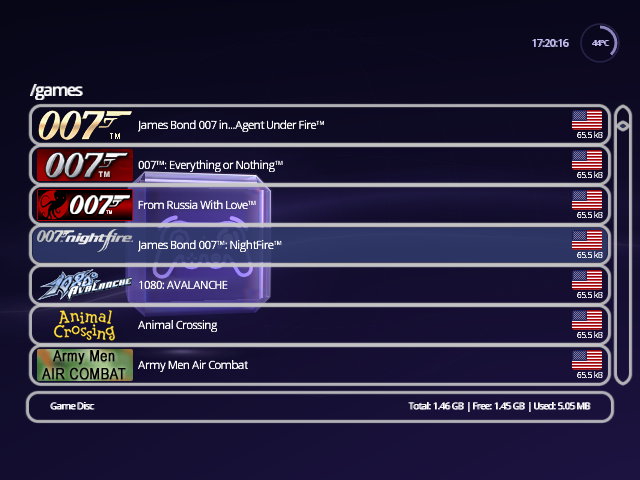
If you see the list above instead of posters, look in /games for the file
that isn't a game. Or turn on Hide unknown file types in Settings ›
Setup › Library, which hides stray files so the Library can take over.
Games on two discs appear twice, once for each disc.
Posters
The box art comes from a poster pack, which is optional. Without one, each
game shows its disc banner and its six-character game ID, such as GMSE01:
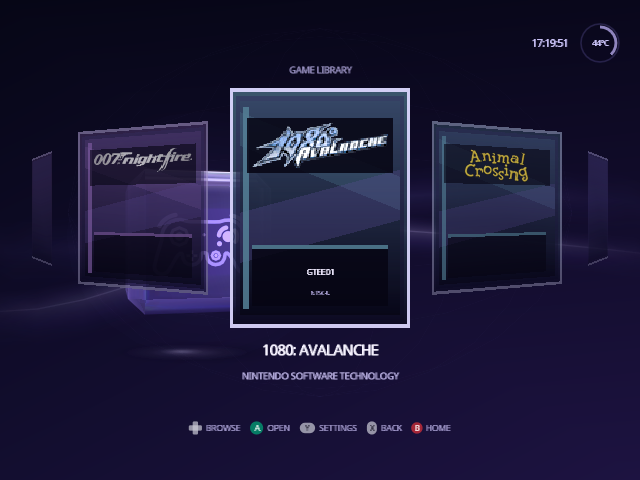
Download a ready-made pack or build your own: see Posters.
Read the games again
Indigo reads the games when it opens a device. If what's on it changes while Indigo is running, for example when you swap the game disc, turn to Source on Home and choose Refresh Library.
From docs/guide/library.md in Indigo v1.25.0, rendered for the web. Spotted a mistake? Suggest an edit.