
Apps is where the other programs on your card live: emulators, Game Boy
Interface, tools, any GameCube homebrew. They go in their own folder,
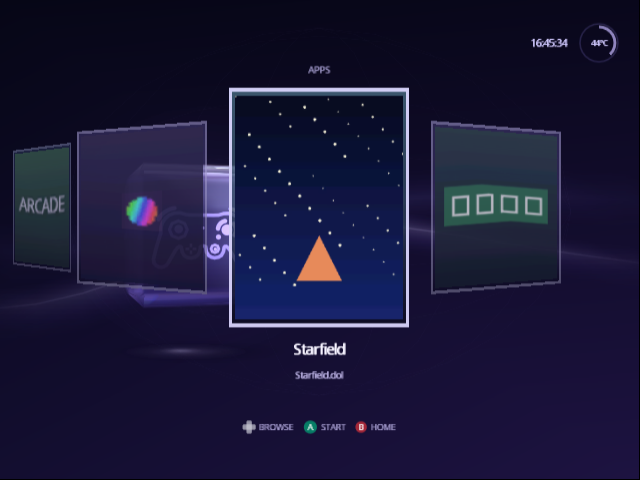
/apps, and show on their own face of the cube as posters, the way the
Library shows games, so they never mix in with your games.
Set up the apps folder
Make a folder called apps at the root of the card (or of whichever device
you chose on Source), next to games, and put the programs in
it:
apps/
  gbi.dol
  gbi.png
  gbihf.dol
  gbihf.png
  igr.dol
  Genesis Plus GX/
    genplus_cube.dol
    icon.png
- A program is any
.dol,.dol+clior.elffile, in/appsor in a folder inside it. Folders inside those folders aren't read. - An app is called by its file name without the extension:
gbihf.dolshows as gbihf. Rename the file to rename the app. - Apps are in alphabetical order, and up to 256 of them show.
- Left out: a file called
boot.dolorboot.elf, which in the Wii's Homebrew Channel layout is the Wii program; hidden files; and names that start with a dot, such as the._copies a Mac leaves on a card. Swiss's layout for a card shared with a Wii keeps both in one folder: the Wii'sboot.doland the GameCube's program under another name, and Apps shows only the GameCube one.
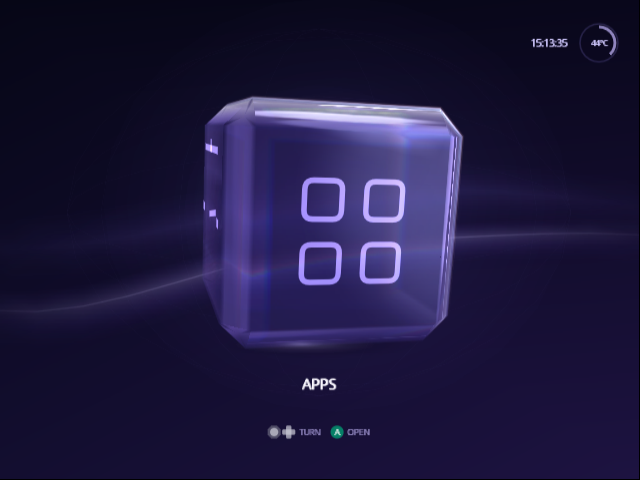
The Apps face appears on Home as soon as the card has an app, one turn left of Library. To keep it off Home, set Settings › Setup › Console › Apps Face to Off; the programs stay where they are, and the file list still starts them.
Real downloads
Most GameCube programs drop straight in:
-
Game Boy Interface's download already has
apps/gbi,apps/gbihfandapps/gbisr, and aGBIfolder: copy both to the root as they are. Each video setup is a program of its own (gbihf-ossc,gbihf-direct-hdmiand so on), so Apps lists every one; delete those you don't use to keep the list short. -
Snes9x GX, FCE Ultra GX, Visual Boy Advance GX and others that also
come for the Wii: put the GameCube
.dolin the Wii download'sapps/<name>folder, and the Homebrew Channel'sicon.pngthere becomes its poster. The Wii'sboot.dolbeside it is left out. -
Swiss, Genesis Plus GX and other single
.dolfiles: drop them in/apps; without a picture, each gets a poster of its name.
Programs that take options
Apps starts a program the way Swiss's file list does, so the files Swiss
reads beside it still work: a .cli file with the program's name
(gbi.cli for gbi.dol) gives it its command line, one argument a line,
and a .dcp file lists choices to pick from before it starts.
Give an app a picture
Put a PNG beside the program, with the same name: gbi.png for gbi.dol.
An app in a folder can use the folder's icon.png instead, the Homebrew
Channel's icon file, and every program in that folder without a picture of
its own then shares it.
- Any size up to 2048 × 2048 pixels, and up to 2 MB.
- Any PNG, with or without transparency, but not interlaced. Most programs save PNGs that way; if a picture doesn't show, save it again with Interlace off.
- A picture shaped like a poster (3:4, such as 600 × 800) fills the card. Any other shape, like a square icon or the Homebrew Channel's wide 128 × 48 banner, sits whole in the middle of the card, over a backdrop in its own colors. A small picture grows to at most four times its size.
Indigo turns each picture into a poster on the console the first time it's shown, so there is nothing to convert on a computer and no pack to build.
An app without a picture, or with one Indigo can't read, gets a poster of
its name: the name in big letters, a line for each part where it has a -,
_ or space, so gbihf-direct-hdmi reads GBIHF, DIRECT, HDMI. Its colour
comes from the first part, so a program's variants (every gbihf- of Game
Boy Interface) share one and stand apart from the rest.
Use Apps
On Home, turn the cube to Apps and press A. The apps show as posters in the layout you chose for the Library (Settings › Setup › Library › Library Layout), and move the same way:
| To move | Horizontal | Vertical | Grid |
|---|---|---|---|
| To the next or previous app | Left, Right | Up, Down | Left, Right |
| To the app above or below | Up, Down | ||
| A page at a time | Up, Down, L, R | Left, Right, L, R | L, R |
- A starts the app. Its card rises into the launch screen, as a game's does, and the program takes over.
- B goes back to Home.
Apps opens on the app you were on last time. An app that can't start because its file can't be read, is damaged or is too big says so, and you're back on its card. A program made for the Wii can't run on a GameCube at all: it stops on a black screen, and the console needs a restart.
Started apps join your recent list, like anything Swiss starts, when Settings › Setup › Library › Recent List is on.
When Apps doesn't look right
-
No Apps face on Home. Check that Settings › Setup › Console › Apps
Face is On. Otherwise the device has no app Indigo can show: check that
the folder is called
apps, sits at the root, and holds a.dolthat isn'tboot.dol. After adding apps to a device that stays connected, such as a network share, use Source › Refresh Library. -
An app is missing. It is named
boot.dolorboot.elf, it is hidden, its name starts with a dot, or it is two folders deep. -
An app has no picture. The PNG must have the program's name (
gbi.pngforgbi.dol, in any case) or be its folder'sicon.png, be no larger than 2048 pixels a side and 2 MB, and not be interlaced.
From docs/guide/apps.md in Indigo v2.1.0, rendered for the web. Spotted a mistake? Suggest an edit.