

Settings opens on the things you change between games, keeps what every game starts with on a second tab, and tucks the settings you set once into a third. On Home, turn the cube to Settings and press A.
- The three tabs
- Change a setting
- Leave: keep or discard
- Video changes ask first
- A game's own settings
- Where settings are saved
- Every setting
The three tabs
L and R move between the tabs. They sit at the top right, with the one you're on lit.
| Tab | Holds |
|---|---|
| Quick | Nine settings you might change any day: menu music and sounds, UI motion, rumble, In-Game Reset, the GameCube main menu, memory card emulation, auto-loaded cheats and booting without prompts. |
| Game Defaults | What every game starts with: video modes, widescreen, polling rate, the camera stick, compatibility and picture options. A game's own settings can differ from these. |
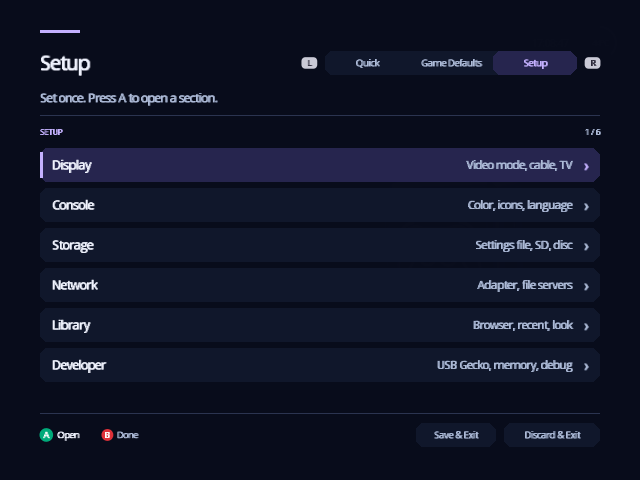
| Setup | Everything you set once, in six sections: Display, Console, Storage, Network, Library and Developer. A opens a section and B goes back to the list. |
Change a setting
- Up and Down move between settings. Hold to scroll.
- Left and Right step the highlighted setting to its previous or next value, with the change on screen at once.
- A changes it too.
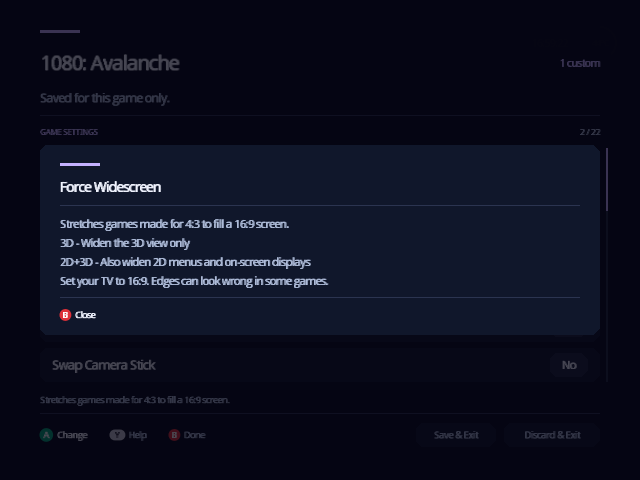
- Y explains the highlighted setting. Every setting has help; Y or B closes it.
Settings that are on or off show a switch, ON or OFF. The line above the buttons says what the highlighted setting does, or what its current value does, such as "Rumble is turned off in games".
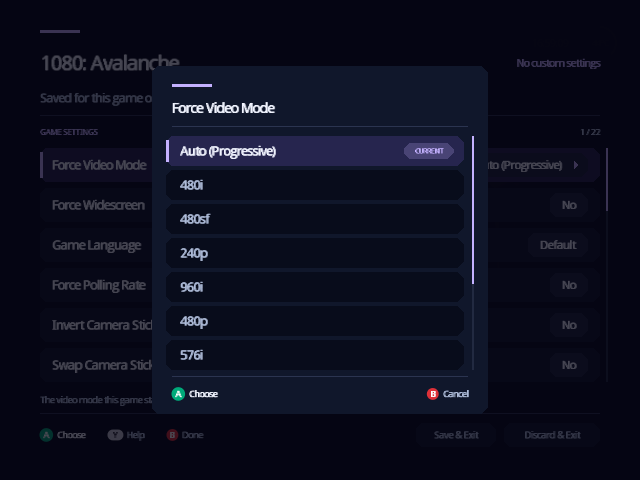
On a setting with four or more choices, such as a video mode or a language, A lists them all instead. Move to a choice and press A, or press B to keep what you had. The list holds only the choices your setup can use; video modes your cable can't show stay out of it.
A dimmed setting doesn't apply to your setup right now, such as IPv4 Address while DHCP is on.
Leave: keep or discard
- B leaves Settings and keeps your changes, the same as Save & Exit.
- Discard & Exit puts back everything you changed since you opened Settings, including Menu Color.
Both buttons sit under the list; move down past the last setting to reach them. In a Setup section, B first goes back to the list of sections.
Video changes ask first
After you change Swiss Video Mode, System Video, AVE Compatibility, Force DTV Status or RetroTINK-4K HDMI Input, Indigo shows the new picture and asks whether to keep it:
Keep Swiss Video Mode: PAL 576i?
It changes back by itself in 10 s.
(A) KEEP    (B) CHANGE BACK
Press A to keep it. Press B, or just wait, and the old mode comes back: if your TV can't show the new one, you only have to wait ten seconds.
A game's own settings
Each game can have its own video mode, widescreen, language, polling rate and the rest. Open them with X on the game's details, or with Y on the game in the Library.
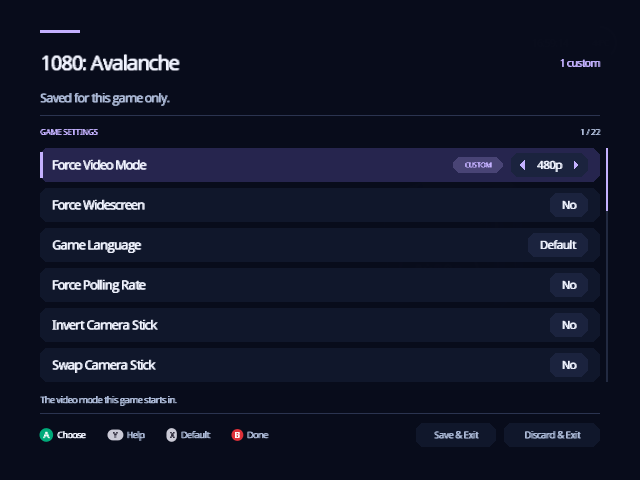
- The title is the game's name, with "Saved for this game only" under it.
- A setting you change is marked Custom. Everything else follows Game Defaults, and changes when they do.
- X puts the highlighted setting back to its Game Defaults value.
- B is Done. The game's details then show how many of its settings are its own, and the first of them.
- Reset to defaults, at the end of the list, clears them all. It asks first, and keeps the game's Comment and Status lines in its file.
Indigo writes only the settings that differ to
/swiss/settings/game/<ID4>.ini, where <ID4> is the first four characters
of the game ID. Discs and revisions that share them share the file.
Where settings are saved
Settings live in /swiss/settings/global.ini on the configuration
device, usually your SD card. Settings › Setup › Storage shows which device
that is, and the line under its title tells you whether the file loaded:
- "Settings are saved in swiss/settings/global.ini."
- "No swiss/settings/global.ini yet: using defaults."
- "No device to save settings to."
To change the device, set Configuration Device in Storage and leave with Save & Exit. The console keeps the new choice only once the settings are written there.
You can also write the file on a computer before you boot: every key and value is in Settings files. When Indigo saves, it keeps your comments and any lines it doesn't know.
Every setting
Press Y on any row for the same explanations on the console.
Quick
| Setting | What it does |
|---|---|
| Menu Music | Indigo's ambient music loop. Changes at once. |
| Menu Sounds | The soft sounds as you move and choose. |
| UI Motion | Full: calm motion and ambient detail. Reduced: faster transitions, no decorative movement. Off: everything moves instantly. |
| Controller Rumble | Whether controllers can rumble in games. |
| In-Game Reset |
Reboot or Apploader lets you leave a game with A + Z + START (R + Z + START restarts it). Apploader returns to Indigo through /swiss/patches/apploader.img, which the zip includes; Reboot resets the console. |
| Load GameCube Main Menu | Starts games through the GameCube logo and main menu, with patches applied. |
| Emulate Memory Card | Games save to a memory card image on the device they start from, instead of a real memory card. Needs a device that supports it. |
| Auto-load cheats | Applies a game's saved cheats every time it starts. See Cheats. |
| Boot without prompts | Starts a game as soon as you choose it, without its detail screen. Hold B while choosing to see the screen. |
Game Defaults (and a game's own settings)
| Setting | What it does |
|---|---|
| Force NTSC Video Mode, Force PAL Video Mode | The video mode games start in. Auto keeps each game's own mode. A game's own settings have one row, Force Video Mode. |
| Game Language | Game's own settings only. The language the game uses; Default follows System Language. Matters most for PAL games. |
| Force Widescreen | Stretches games made for 4:3 to 16:9. 3D widens the 3D view; 2D+3D also widens menus. Set your TV to 16:9. |
| Force Polling Rate | How often the game reads the controller. VSync is the most compatible; 1000Hz has the least delay. |
| Invert Camera Stick | Inverts the C-stick's X axis, Y axis or both. |
| Swap Camera Stick | Swaps the C-stick's axes with the control stick's. |
| Digital Trigger Level | How far L and R travel before they count as fully pressed. |
| Prefer Clean Boot | Resets the console and starts the game with nothing changed. Region restrictions apply. Disc drive and drive replacements only. |
| Hypervisor | Features and fixes that rely on Swiss's hypervisor. Off turns them all off. |
| Emulate Read Speed | Slows loading to match the GameCube (or Wii) disc drive, for games that rely on it and for speedrunning. |
| Emulate Audio Streaming | Plays the background audio some games stream from the disc, for devices that can't stream it. |
| Emulate Broadband Adapter | Gives the game a network adapter over a file server or network module, where memory allows. |
| Disable Memory Card | Hides the memory card in slot A or B from the game, for games that misbehave with it. |
| Force Horizontal Scale | How the picture is scaled across: Auto, 1:1, fixed ratios or a fixed width. |
| Force Vertical Offset | Game's own settings only. Moves the picture up or down. |
| Force Vertical Filter | The vertical blend or deflicker filter. |
| Force Field Rendering | How interlaced pictures are drawn: by field, whole frames, or TAA. |
| Fix Pixel Center | Shifts the picture by 1/24 or 1/12 of a pixel, for games drawn off the pixel grid. Swiss turns it on by itself for the few games that need it. |
| Alpha Dithering | The fine dithering the GameCube adds to blended effects. Turn it off if it shows as a dot pattern on digital video. |
| Force Anisotropic Filter | Sharper textures at an angle. It can slow some games badly; use it sparingly. |
| RetroTINK-4K Profile | The RetroTINK-4K profile to switch to for games (and in the menus). |
| Reset to defaults | Puts every setting on the screen back. It asks first. |
Setup › Display
| Setting | What it does |
|---|---|
| Swiss Video Mode | The video mode of Indigo's own screens. Auto picks 480p with a digital cable and otherwise follows the console's region. Asks before it keeps a change. |
| System Video | NTSC, PAL or PAL-M, mainly for the Brazilian console. |
| Screen Position | Moves the picture left or right in games. |
| AVE Compatibility | Workarounds for your video encoder or digital video mod, such as GCVideo or GCDigital. |
| Force DTV Status | No trusts the Digital AV Out's own cable detection; Yes forces it, for a hardware fault; Region Switch eases moving between SD and ED TV setups. |
| RetroTINK-4K HDMI Input | Optimizes the signal for a RetroTINK-4K; the help lists the firmware it needs. |
| Disable Video Patches | Game skips only the fixes for particular games; All patches no video, and forced video modes stop working. |
| Force Video Active | A workaround for GCVideo-DVI 3.0 firmware. |
| Pause for resolution change | Pauses a game for 2 seconds when its resolution changes, so your display can catch up. |
Setup › Console
| Setting | What it does |
|---|---|
| Menu Color | The color of the whole interface. See Make it yours. |
| Library Icon, Source Icon, Settings Icon, System Icon | The icon on each face of the Home cube. See Make it yours. |
| System Sound | The audio output most games use: mono or stereo. |
| System Language | The language games use, mainly multi-language PAL games. |
| System Boot Mode | On development hardware, development or production mode. With GC Loader or PicoLoader on a retail console, the default skips the GameCube logo. |
| Controller Recalibration | Off skips controller recalibration, for controllers that don't follow the standard. |
| CPU Temperature Calibration | Adjust it on a cold boot so the temperature at the top right reads about room temperature. |
Setup › Storage
| Setting | What it does |
|---|---|
| Configuration Device | Where global.ini is read and saved. Kept in the console's memory once Save & Exit has written the settings there. |
| Save Folder | Where Memory Cards copies saves off a memory card, and the folder it opens first: a folder on the Configuration Device, swiss/saves until you choose another. A lists the folders; X chooses the one that's open. |
| SD/IDE-EXI Speed | 27 MHz is faster; some SD cards or adapters only work at 13.5 MHz. |
| Init DVD Drive at startup | Needed for the eject button on the Panasonic Q when Indigo replaces the IPL. |
| Stop DVD Drive motor | Stops a disc that is already spinning, as after a save-game exploit. |
| Configure Audio Buffer | Audio streaming: off, only for discs known to use it, or whenever a disc asks. It takes some of the drive's cache, so loading is slower. |
| Disable MemCard PRO GameID | Stops Indigo telling a MemCard PRO in that slot which game is starting. |
Setup › Network
| Setting | What it does |
|---|---|
| Init network at startup | Starts the Broadband Adapter when Indigo starts. |
| IPv4 uses DHCP, IPv4 Address, Netmask, Gateway | Your router assigns the address, or you set it here. |
| FSP Host IP, Port, Password, Path MTU | A computer serving your games over FSP. |
| FTP Host IP, Port, Username, Password, PASV Mode | An FTP server with your games. Try PASV if listings stall. |
| SMB Host IP, Share, Username, Password | A computer sharing your games over SMB. |
| RetroTINK-4K Host IP, Port | A RetroTINK-4K on your network, which Indigo switches to each game's profile. |
Passwords are saved as plain text in global.ini.
Setup › Library
| Setting | What it does |
|---|---|
| Library Layout | How the poster Library lays out your games: Horizontal, a row (the default); Vertical, a column with the title beside the cover; or Grid, rows of five. See Library. |
| File Browser Type for games, for apps, and for everything else | How Swiss's file lists look: Standard, Fullwidth or Carousel. The poster Library isn't affected. |
| Recent List | START shows recently played games. Lazy updates it only for new games; Off saves SD card writes. |
| Flatten directory | A folder pattern whose game folders are listed as if their disc images sat directly in it. The default is */games. |
| Show hidden files | Lists hidden files and folders, such as /swiss. |
| Hide unknown file types | Hides files that aren't games, programs, music or memory card saves. It also stops a stray file hiding the Library. |
| File Management | Z in a file list opens actions to copy, move, rename or delete. |
| Panel Transparency | Translucent panels, like the GameCube menu, or solid ones. |
| Animated Backdrop | Whether the backdrop behind the cube drifts. |
Setup › Developer
| Setting | What it does |
|---|---|
| Enable USB Gecko | Sends debug output to a USB Gecko, and makes wiiload available. |
| Wait for USB Gecko | Waits for the computer to read the Gecko's buffer when it fills. |
| Simulated MRAM Size | Limits memory on development hardware. |
| WiiRD debugging | Starts games with the WiiRD debugger enabled and paused. It uses more memory. |
From docs/guide/settings.md in Indigo v1.25.0, rendered for the web. Spotted a mistake? Suggest an edit.