

Home is a glass cube with one destination on each of its four faces. Turn the cube to the face you want and press A.
The four faces
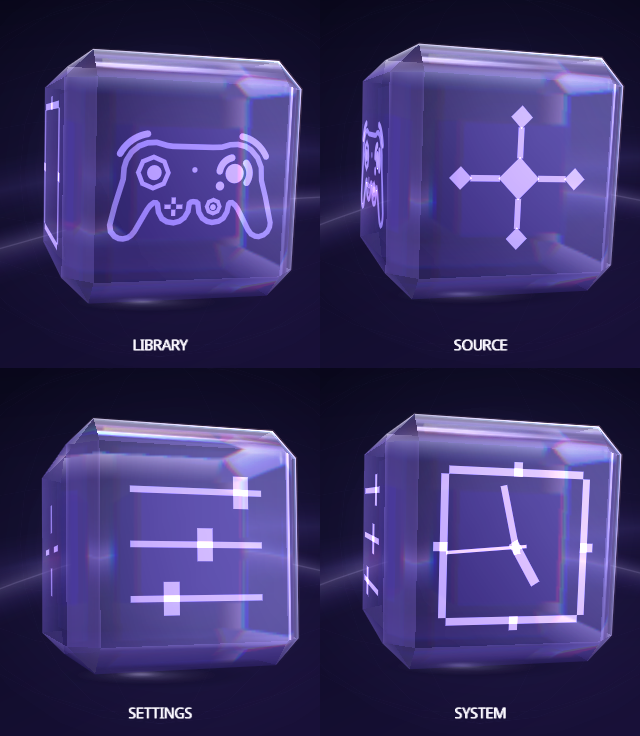
| Face | A opens |
|---|---|
| Library | Your games, as posters. See Library. |
| Source | A short list: Change Source picks the device your games come from, and Refresh Library reads it again, for example after you swap the disc. See Source. |
| Settings | Settings. See Settings. |
| System | A short list: System Information, Memory Cards and Restart Indigo. See System and Memory Cards. |
Left and Right turn the cube sideways; Up and Down tip it over. Either way you reach the next face, and the name under the cube tells you which face is in front. The face icons can be changed: see Make it yours.
Indigo starts on Library when it finds a device to read games from. If it doesn't, it starts on Source, and A on Library takes you there too.
When Indigo starts, the cube flies in from the distance, spinning, and comes to rest on that face within a second. With UI Motion set to Reduced it fades in instead, and with Off it is simply there.

The glass
The cube is glass, and it treats light the way glass does:
- It bends what is behind it. Through the front you see the cube's far edges, its inner cube and the backdrop, slightly magnified across the faces and pulled round the rounded edges.
- It parts light into colour. Where the bend is strongest, on the rounded edges, light splits into red, green and blue like a prism.
- It glows. Highlights and glints have a soft glow, a fine rim lights the edges that face the light, and a halo sits behind the cube with a patch of focused light on the floor under it. The face icons stay sharp on top of the glass.
Every part follows your Menu Color, except the prism's fringes, which keep their own colors. With UI Motion set to Reduced or Off, the cube's gentle sway stops; the glass still bends light and glows. Behind Settings the cube keeps its plain glass.
The controller on the Library face
The controller on the Library face follows the one in your hand. Its sticks lean as you move yours, and its buttons light while you hold them. Leave it alone for two seconds and it starts playing by itself.

With UI Motion set to Reduced or Off, it only follows your controller and never plays by itself. UI Motion is in Settings › Quick.
Around the cube
- Top right: the time and the console's CPU temperature. The temperature has no factory calibration; adjust it in Settings › Setup › Console › CPU Temperature Calibration.
- Bottom: the buttons that work here.
- Music and sounds: Indigo plays its own ambient loop and soft navigation sounds. Turn either off in Settings › Quick.
- START: shows your recently played games, when Settings › Setup › Library › Recent List is on.
From docs/guide/home.md in Indigo v1.25.0, rendered for the web. Spotted a mistake? Suggest an edit.