
- I see Swiss's file list instead of the Library
- Home starts on Source, or Library says Select Source
- Some games have no box art
- A message says the file is a bad dump
- The screen went dark after I changed a video mode
- A game's picture is stretched, shifted or wrong
- My settings don't stick
- My cheats don't show up, or don't work
- In-Game Reset takes me to stock Swiss
- The same game opens every time Indigo starts
- Still stuck
I see Swiss's file list instead of the Library
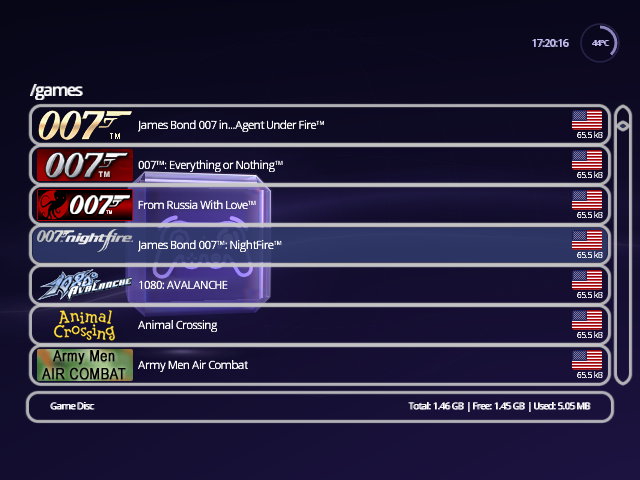
The Library appears only when /games holds nothing but games: disc images
(.iso, .gcm, .tgc, .fdi) or folders with one in each. A single other
file, such as a text file or cover image, or an empty folder, brings back the
file list. Remove it, or turn on Hide unknown file types in Settings ›
Setup › Library. See Set up the games folder.
Home starts on Source, or Library says Select Source
Indigo didn't find a device to read games from when it started. Check that the SD card or drive is seated, then choose it on the Source face: see Change the source. In the source picker, Z also lists the devices that weren't detected, and A on one tries again.
Some games have no box art
A game shows its banner card when its game ID isn't in your poster pack: it's from the other region, or GameTDB has no cover for it. The card shows the ID, so you can check. Use the pack for the region most of your games are from, or build your own.
A message says the file is a bad dump
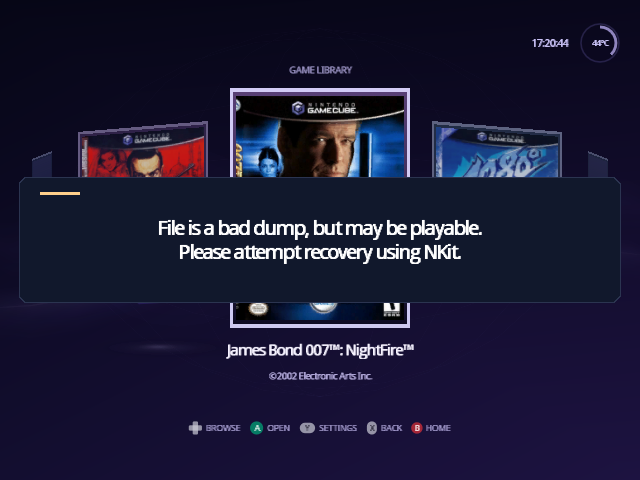
Swiss knows the exact size of each GameCube disc. "File is a bad dump, but may be playable" means your image is a different size, so something is probably missing or damaged. It shows for five seconds, then the game opens anyway. "File is a bad dump and is not playable" stops the game from opening. Try NKit's recovery, as the message suggests, or make a fresh copy of the disc. Verify (R on game details) checks an image's data.
The screen went dark after I changed a video mode
Wait ten seconds. After a change to Swiss Video Mode, System Video, AVE Compatibility, Force DTV Status or RetroTINK-4K HDMI Input, Indigo puts the old mode back by itself unless you press A to keep it. See Video changes ask first.
If a game starts in a mode your TV can't show, open the game's details, press X, highlight Force Video Mode and press X to put it back to the default.
A game's picture is stretched, shifted or wrong
Look at the game's own settings (X on its details) for anything marked Custom: Force Widescreen, Force Horizontal Scale and Force Vertical Offset change the picture. X puts a setting back to Game Defaults. If every game looks wrong, check Settings › Game Defaults instead.
My settings don't stick
Open Settings › Setup › Storage and read the line under the title:
- "No device to save settings to." Indigo found nowhere to save. Check your SD card, then set Configuration Device and leave with Save & Exit.
- "No swiss/settings/global.ini yet: using defaults." There's no file yet, or it couldn't be read. Leaving Settings with B or Save & Exit writes one.
-
"Settings are saved in swiss/settings/global.ini." Saving works. If a
setting you typed into the file on a computer is ignored, check its spelling
against Settings files: keys and values are
case-sensitive, and only
Yesturns a setting on.
Leaving with Discard & Exit throws away the changes you made.
My cheats don't show up, or don't work
-
"No cheats found" on game details: the file must be
/swiss/cheats/<game ID>.txt, named with the six-character ID exactly. The cheat pack has them for every region. - The cheats don't apply: cheats apply when you open the cheat browser before starting the game. To have them apply every time, turn on Auto-load cheats in Settings › Quick.
- "Not enough room. Turn off another cheat first.": the cheats that are on have filled the space for cheats. Switch some off; Z in the browser shows how much is used.
In-Game Reset takes me to stock Swiss
In-Game Reset set to Apploader returns to whatever is in
/swiss/patches/apploader.img. Copy that file from the zip of the Indigo
you run: the one stock Swiss ships is stock Swiss. Reboot resets the
console instead, which returns to Indigo only when your loader boots it
(GC Loader boots boot.iso).
The same game opens every time Indigo starts
That game is set to Autoload. Press B to go to the Library, open the game again and press Z: the shortcut changes from "Autoload On" back to "Autoload".
Still stuck
- Questions: Discussions.
- Bugs: open an issue, with your Indigo version (System › System Information › About Indigo), your loader and what you pressed.
- Report problems with Indigo here, not to the Swiss project: Indigo is an unofficial fork.
From docs/guide/troubleshooting.md in Indigo v1.25.0, rendered for the web. Spotted a mistake? Suggest an edit.